See it for yourself
Walk through it the way a parent does
This is the real product, not a video and not a set of screenshots. You can move the sliders, answer the questions and read the report. A short note on each screen says what a parent would be seeing and why it is there.
Start the walkthroughOpens demo.helloassembly.com. Takes about five minutes.
The child is made up
You will meet Alfie, who is nine and does not exist. His answers are written to show a realistic mix of strengths and difficulties, so the report has something to say.
Everything works
The sliders move, the checklist ticks and the chat answers. It is built from the product's own components, not a mock-up of what we hope to build.
Nothing you type is kept
The walkthrough has no account, no database and nowhere to send anything. What you type stays in your browser and goes when you close the tab. There is no analytics on it either.
Or look through it, screen by screen
These are pictures of the real product, taken automatically from our own walkthrough with made-up people. Each story is a few screens in order, with a line under each saying what is on it. Pictures taken on 7 November 2026.
Trial
A school in a pilot invites a parent, the parent accepts, then gets started. Three pieces, in order.
1. SENCO invites a parent
From the school's list of children to an invitation sent. Seen as Nadia, SENCO.
-
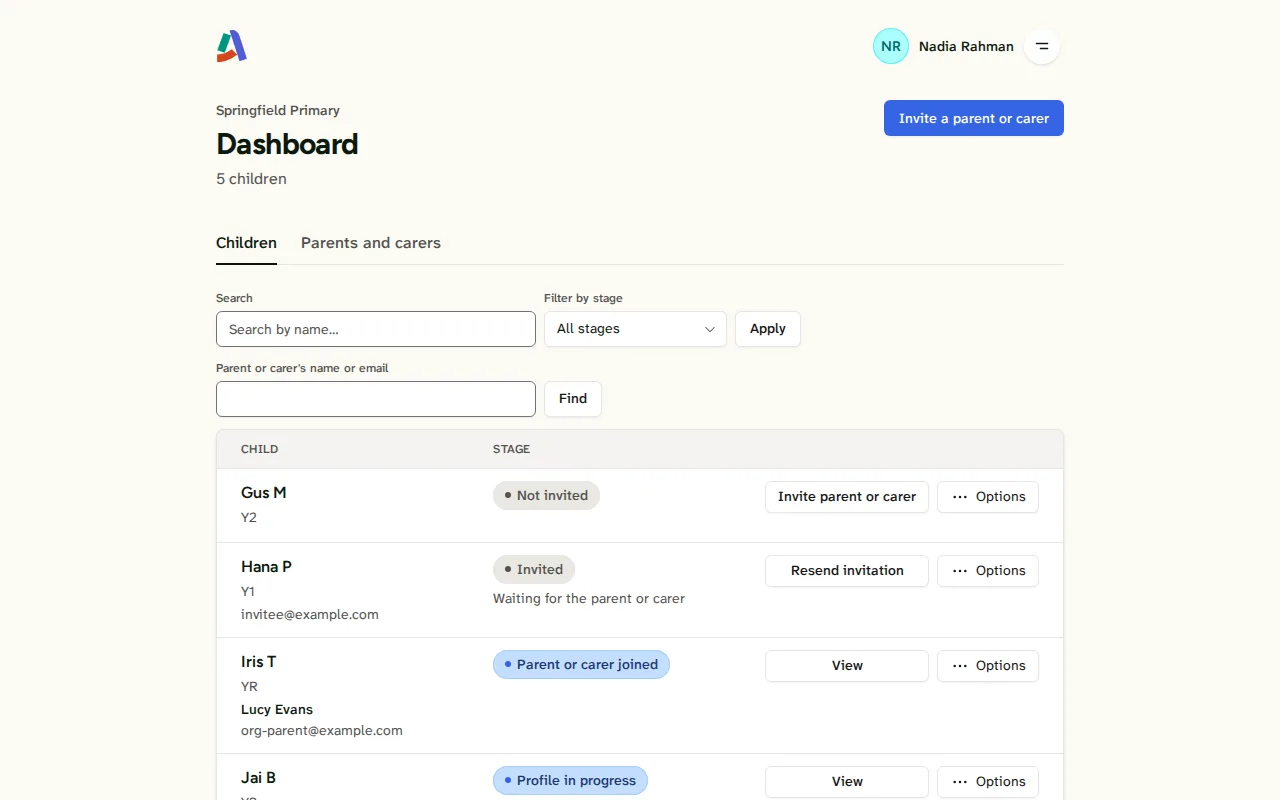
The school's list of children. Nadia's list of children at the school, and where each one has got to. Press “Invite a parent or carer”. -
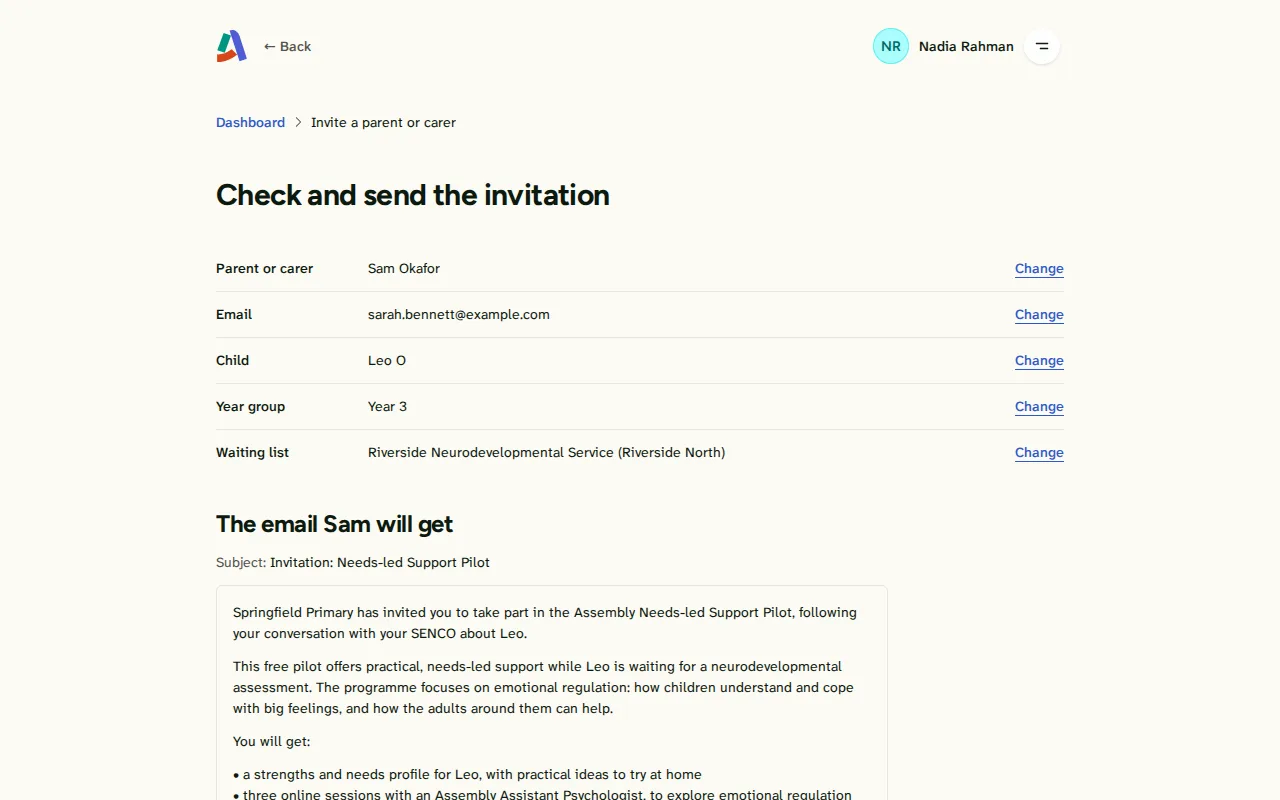
Invite a parent or carer. Answer the questions one page at a time: the parent's name, a made-up email address, the child's first name and their year group. The last page shows the email exactly as the parent will read it. Check it, then send it. -
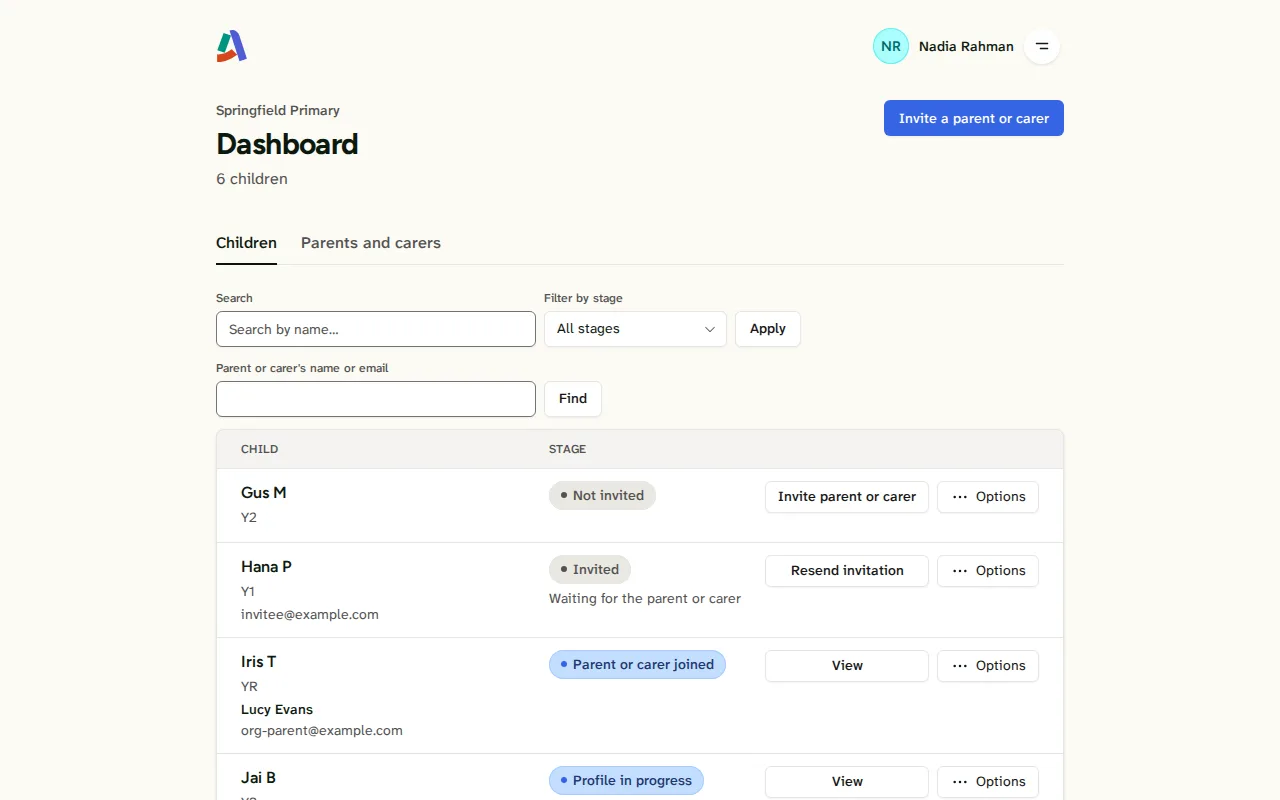
Back on the list: Invited. Back on the list, the new child reads “Invited”. The rest of the story is the parent's.


Screen 1 of 3: The school's list of children
2. Parent accepts the invitation
From the school's email to booking a first call with the clinic. Seen as Sarah, invited parent.
-
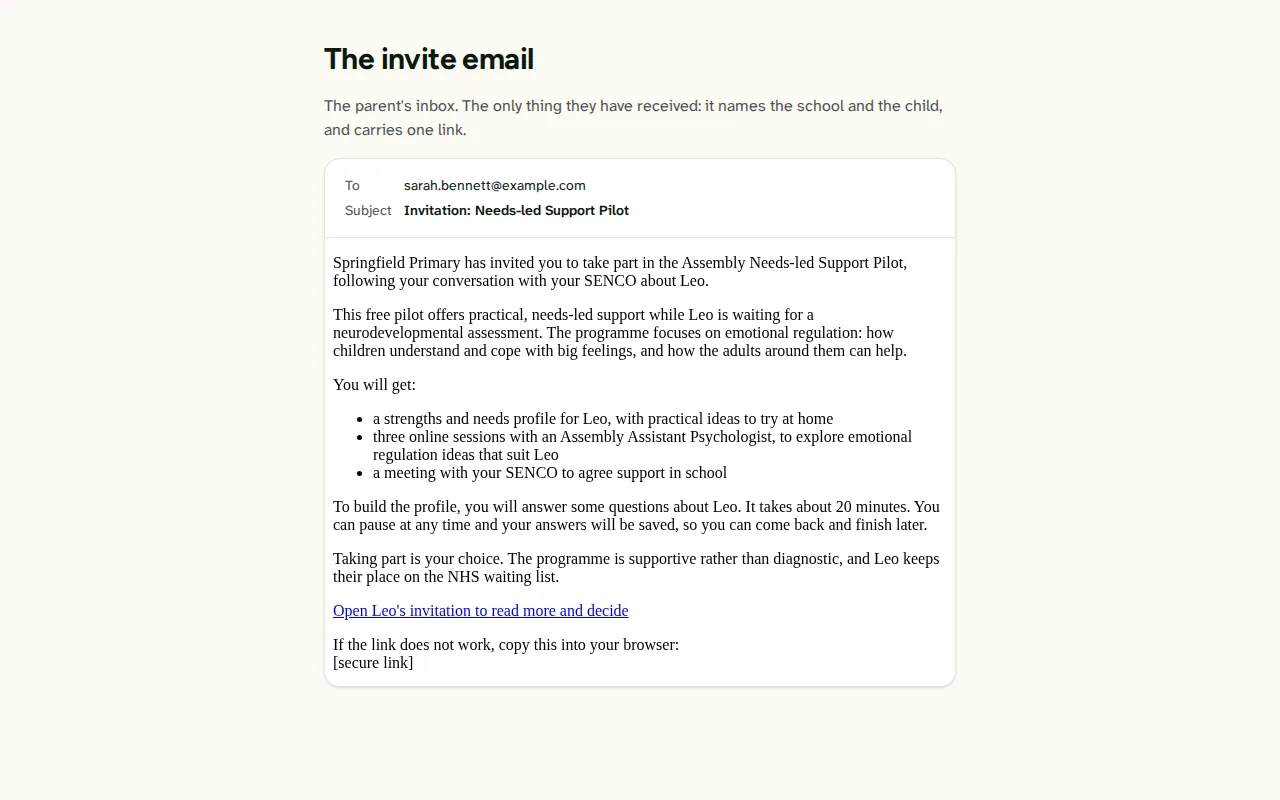
The invite email. The parent's inbox. The only thing they have received: it names the school and the child, and carries one link. -
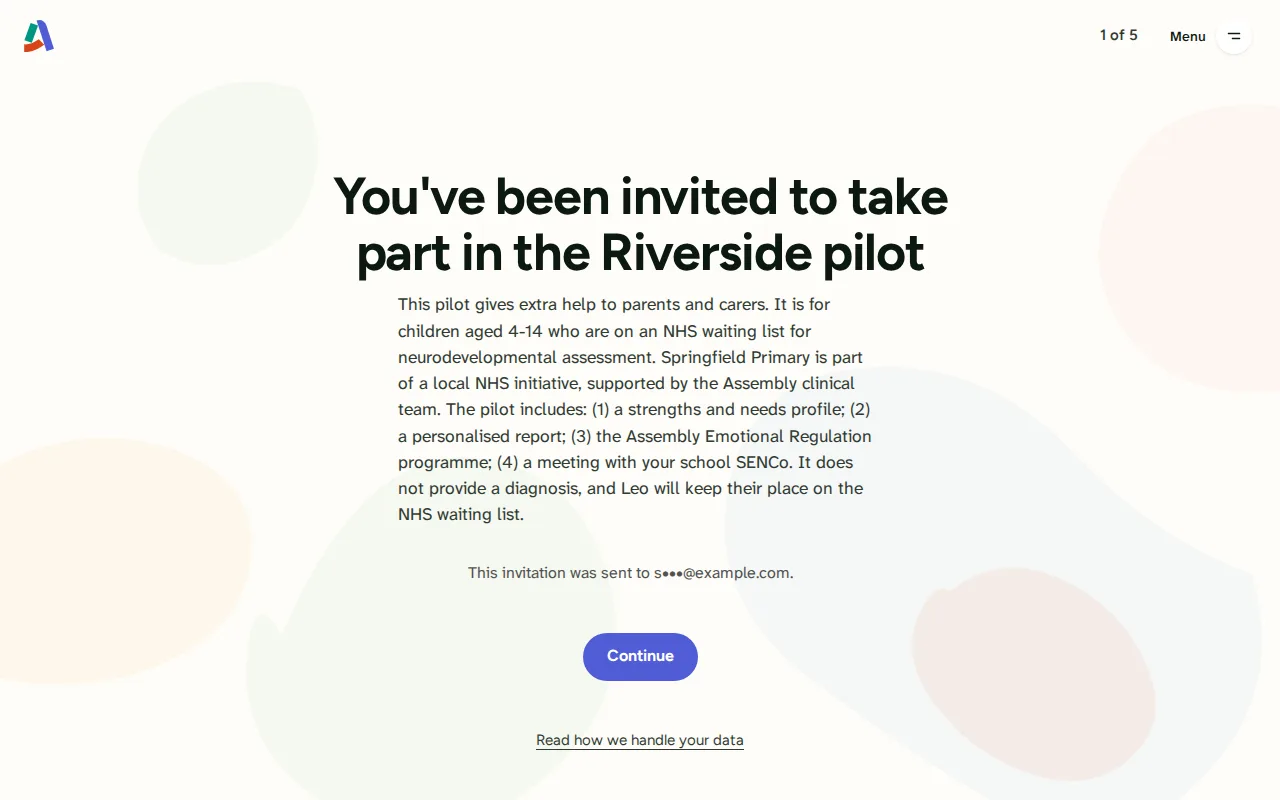
The invitation: the Riverside pilot, and what you'll get. The invitation: the pilot, then what the parent gets, then who sees their answers, one card at a time. Press Continue on the page to read them. The last card opens the consent form, and Join there, or Next here, is the one press that accepts the invitation and joins the pilot. -
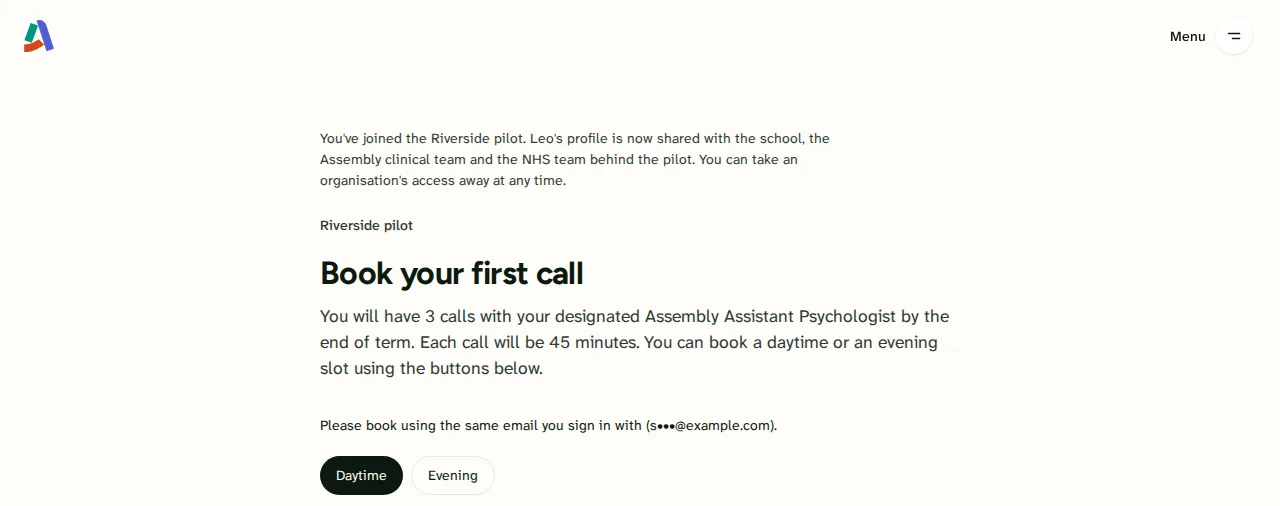
Book a first call. Booking the first call with the clinic. Day and evening calendars.


Screen 1 of 3: The invite email
3. Parent gets started
From the welcome tour to the first question about their child. Seen as Sarah, parent.
-
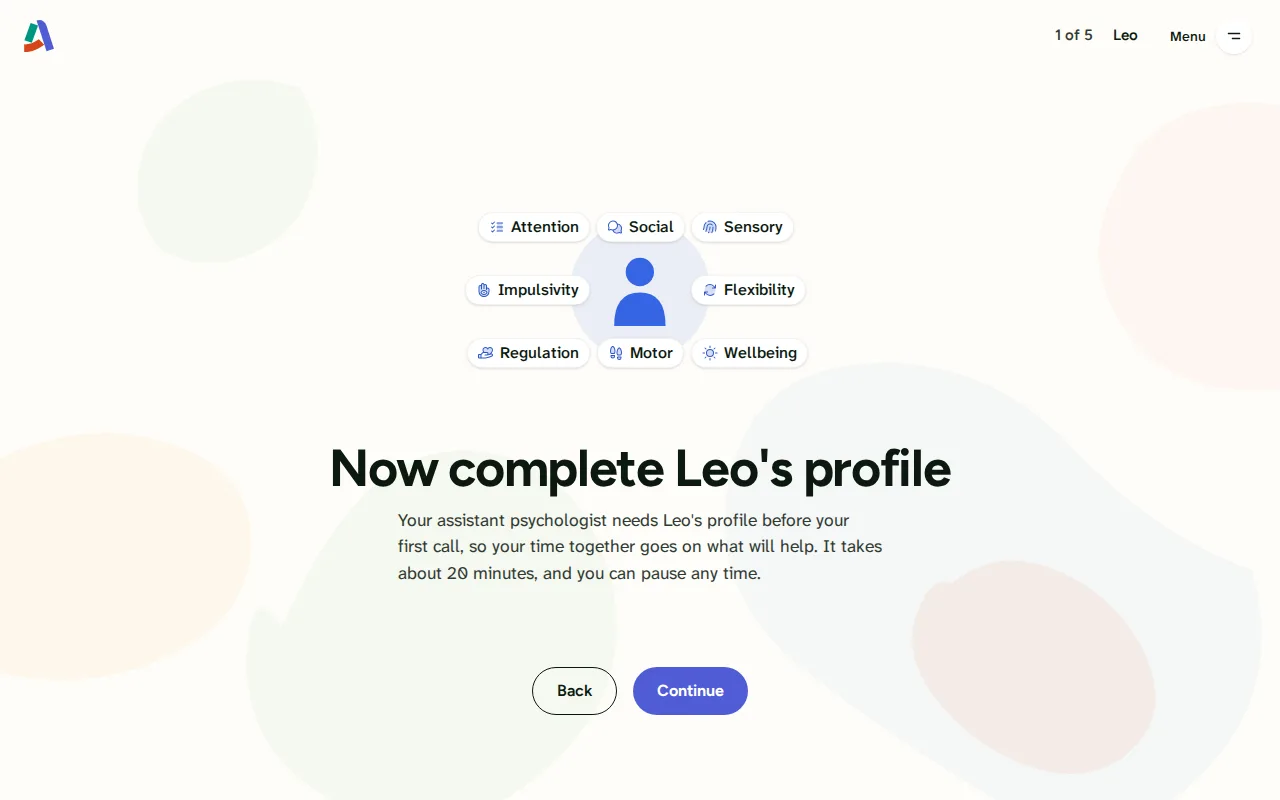
How this works, and “What should we call you?”. How this works, in five short screens. Also the only place the product asks the parent their own name. -
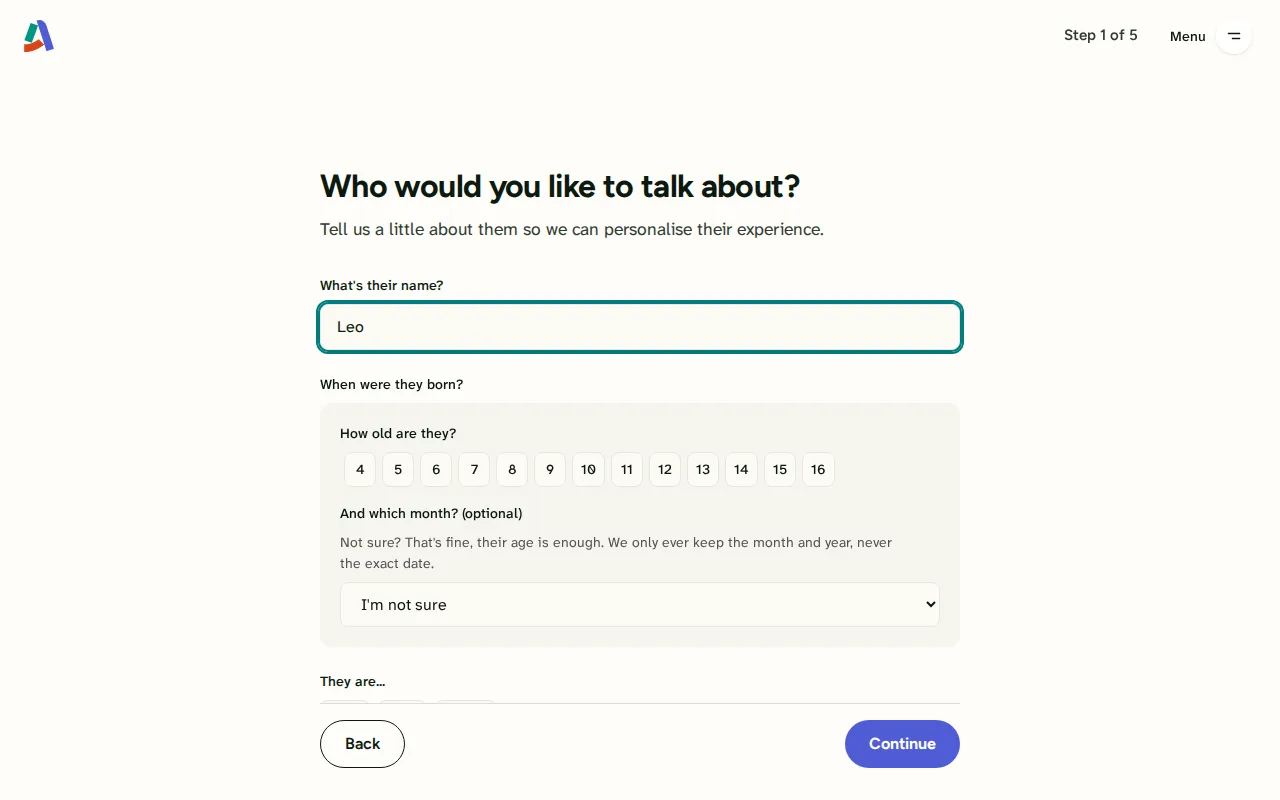
Your child's details. Your child's details -
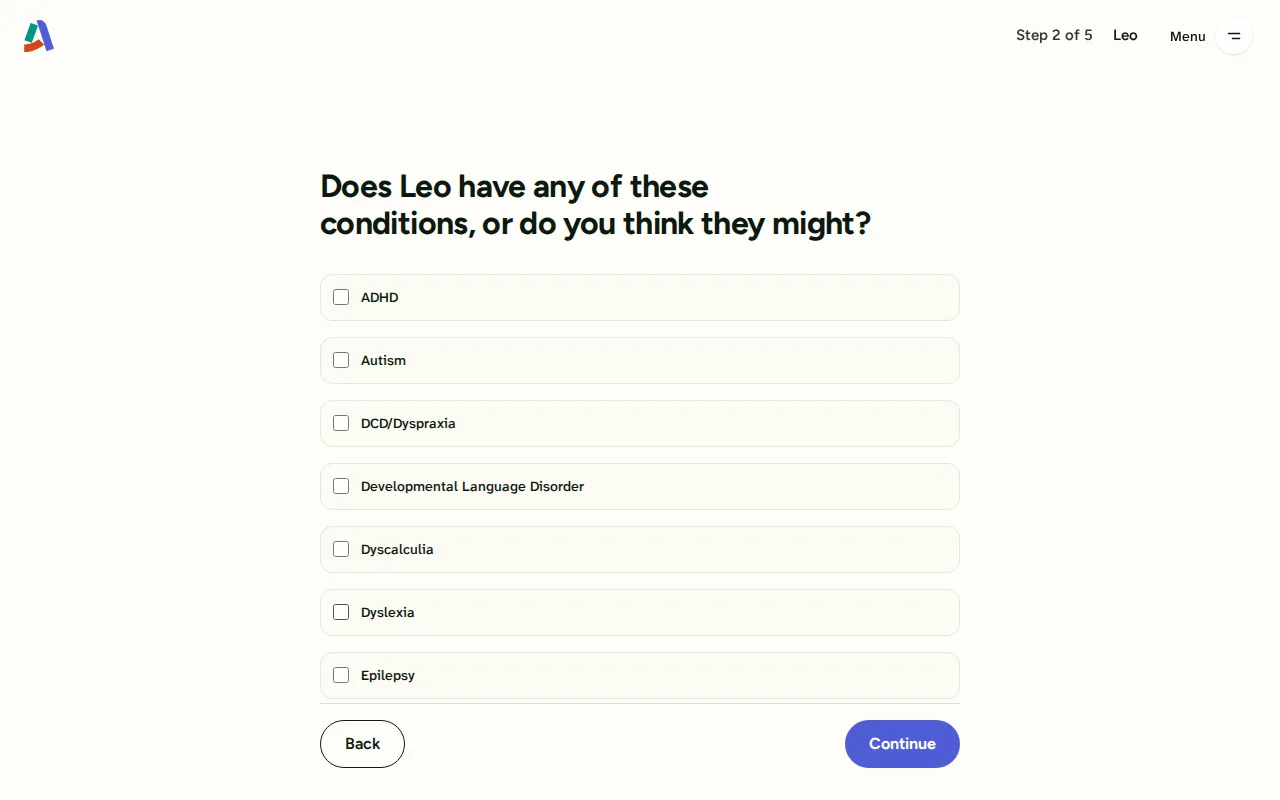
Any diagnoses or assessments?. Any diagnoses or assessments so far. Every route into the questions passes through here. -
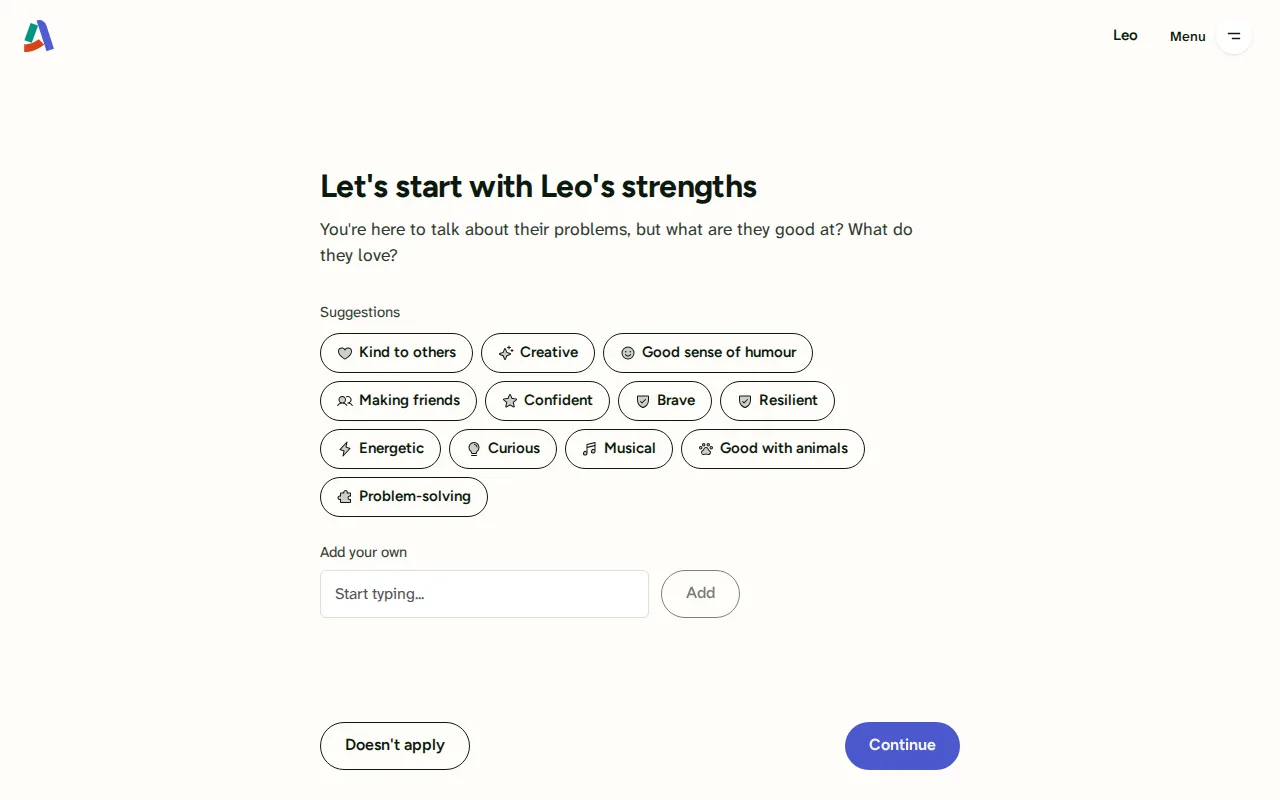
The first profiler card. Where the questions begin: what the child is good at, then what is worrying the parent, in their own words.


Screen 1 of 4: How this works, and “What should we call you?”
On their own
A parent who finds Assembly without a school and signs up directly.
1. Parent signs up directly
No school and no invitation: from the sign-in page, with a new made-up address, to the first question about their child. Seen as Jess, parent.
-
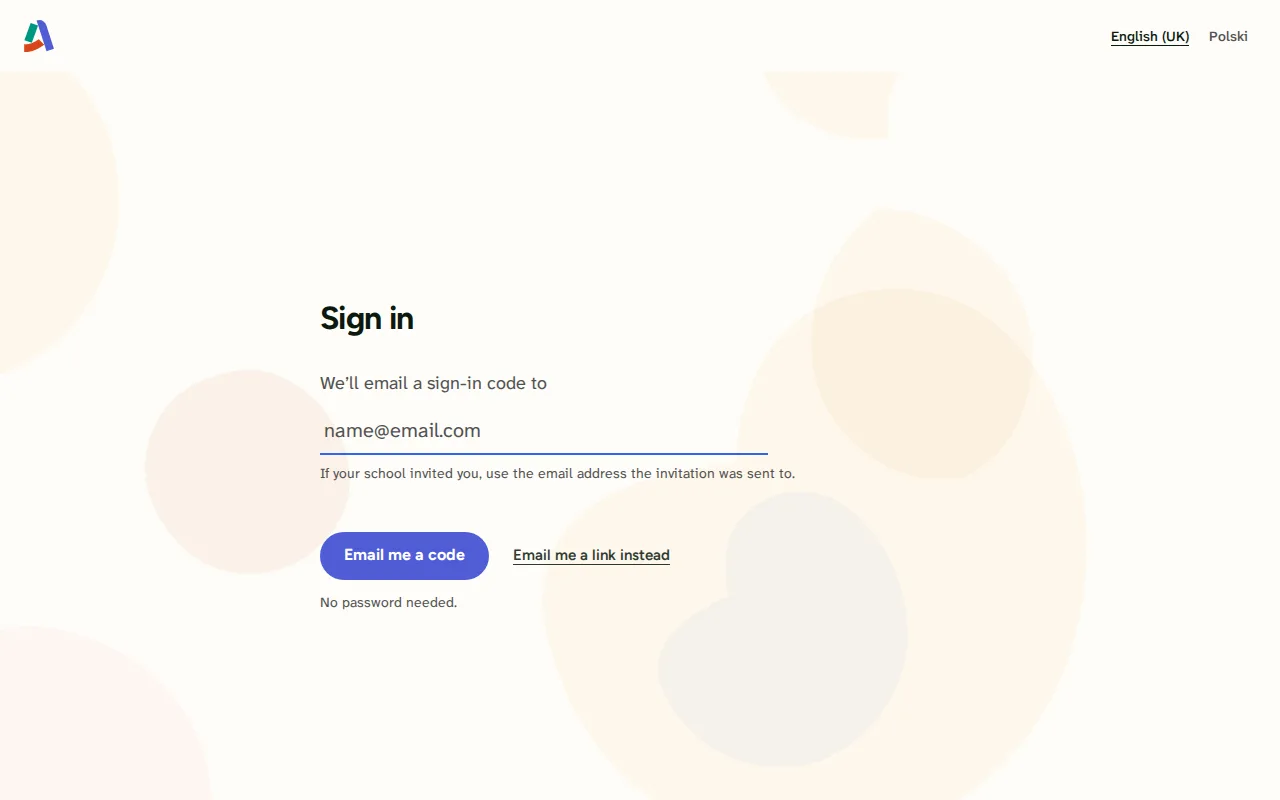
The sign-in page. Where a parent on their own comes in: one box for an email address. Press Next and the guide makes up a new address for Jess and asks for her link, so there is nothing to type. -
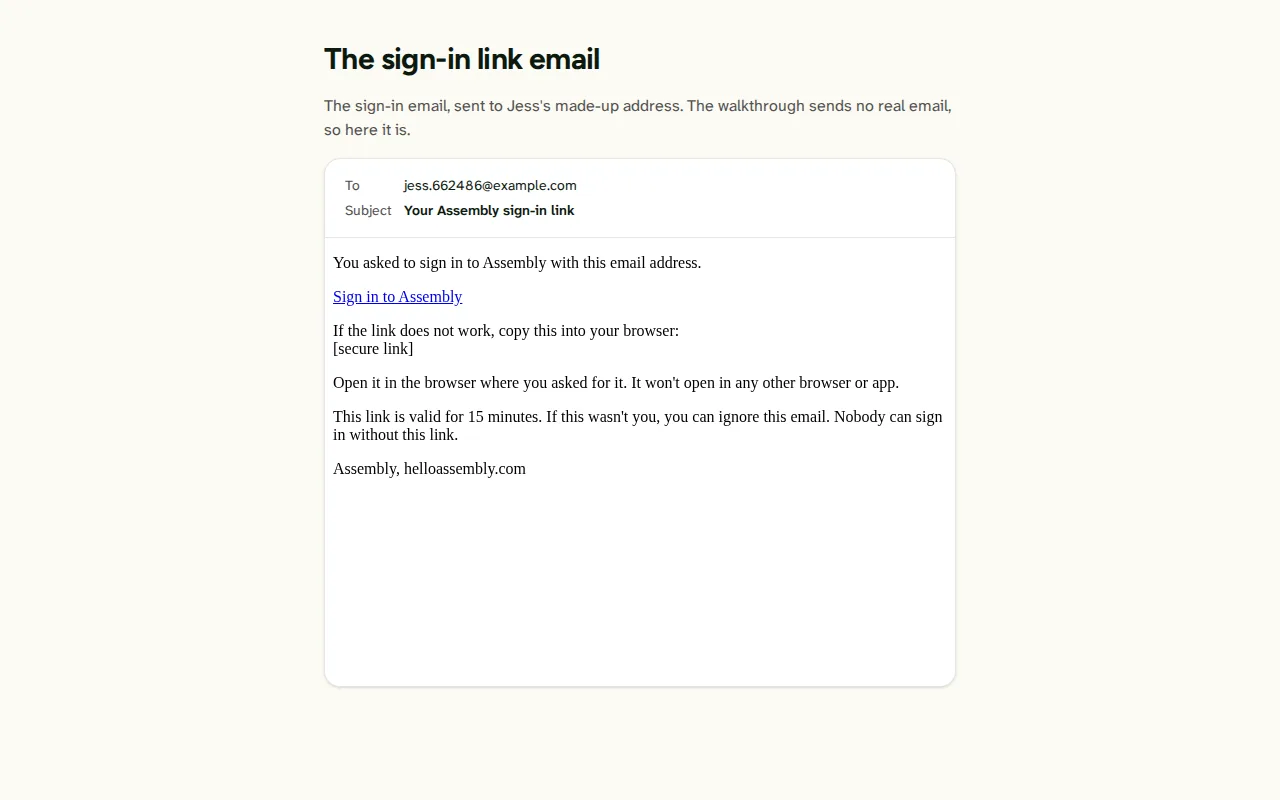
The sign-in link email. The sign-in email, sent to Jess's made-up address. The walkthrough sends no real email, so here it is. -
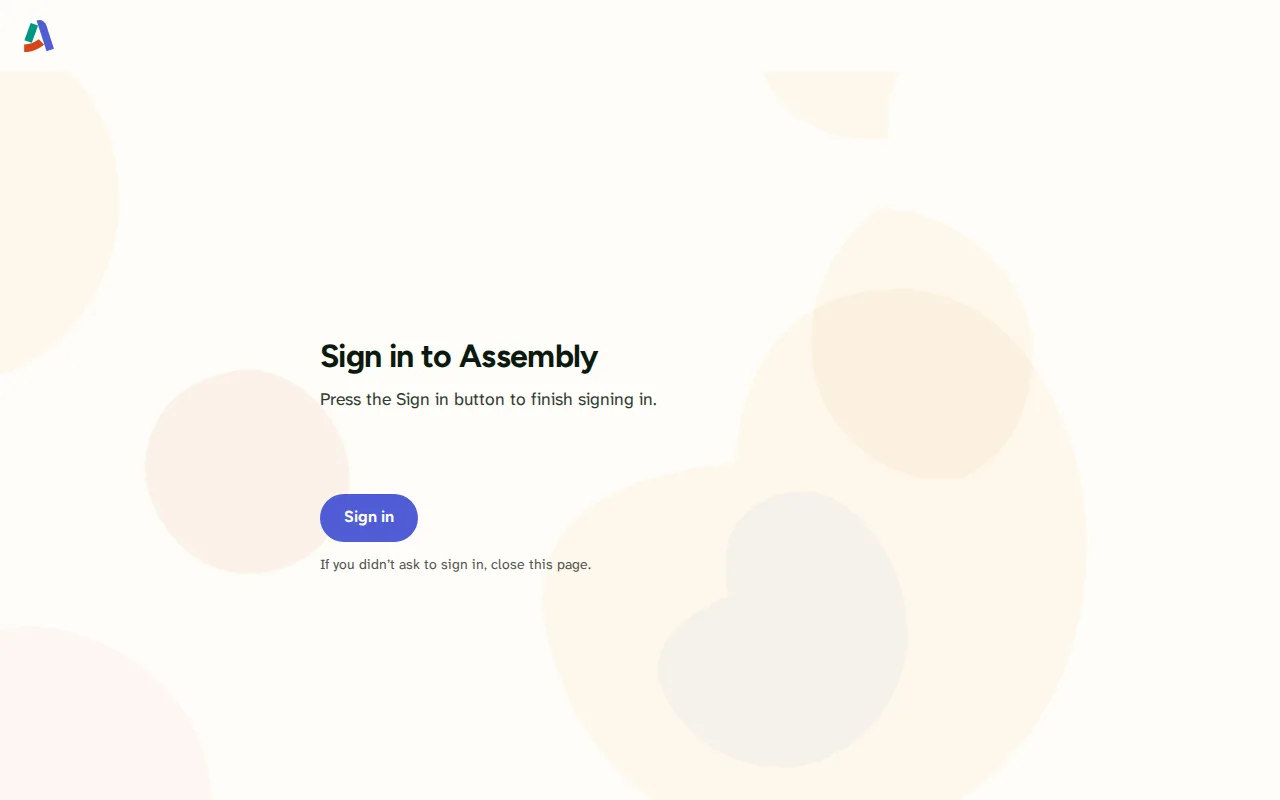
Press to sign in (the link's landing page). Jess opens the link in her email. Press Next here to sign in as Jess, which creates her account. You are not signing in as yourself. Sign in on the page asks first whether a school invited her: she has no school, so the answer is No. -
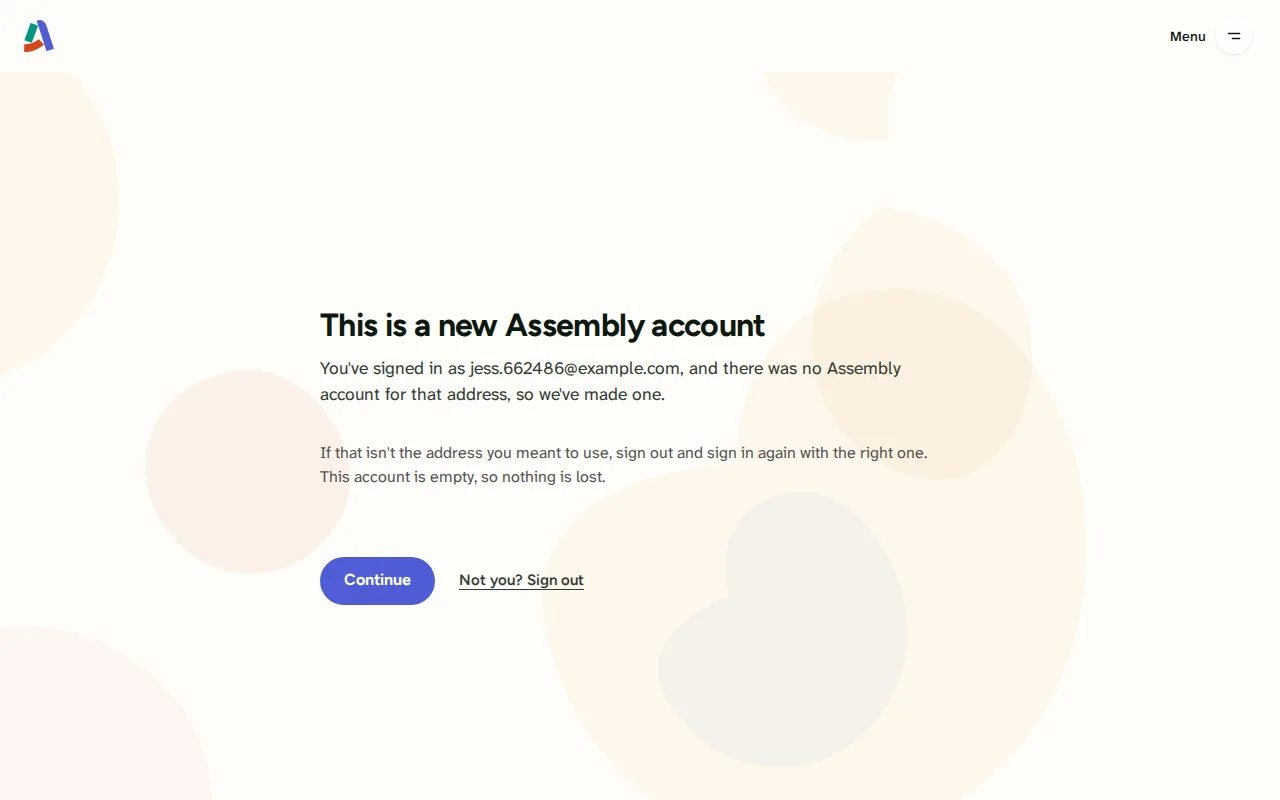
A new account is told it is new. Jess is signed in. Her address has never been used, so the product says the account is new, before anything else. “Not you?” is for a parent who typed the wrong address. -
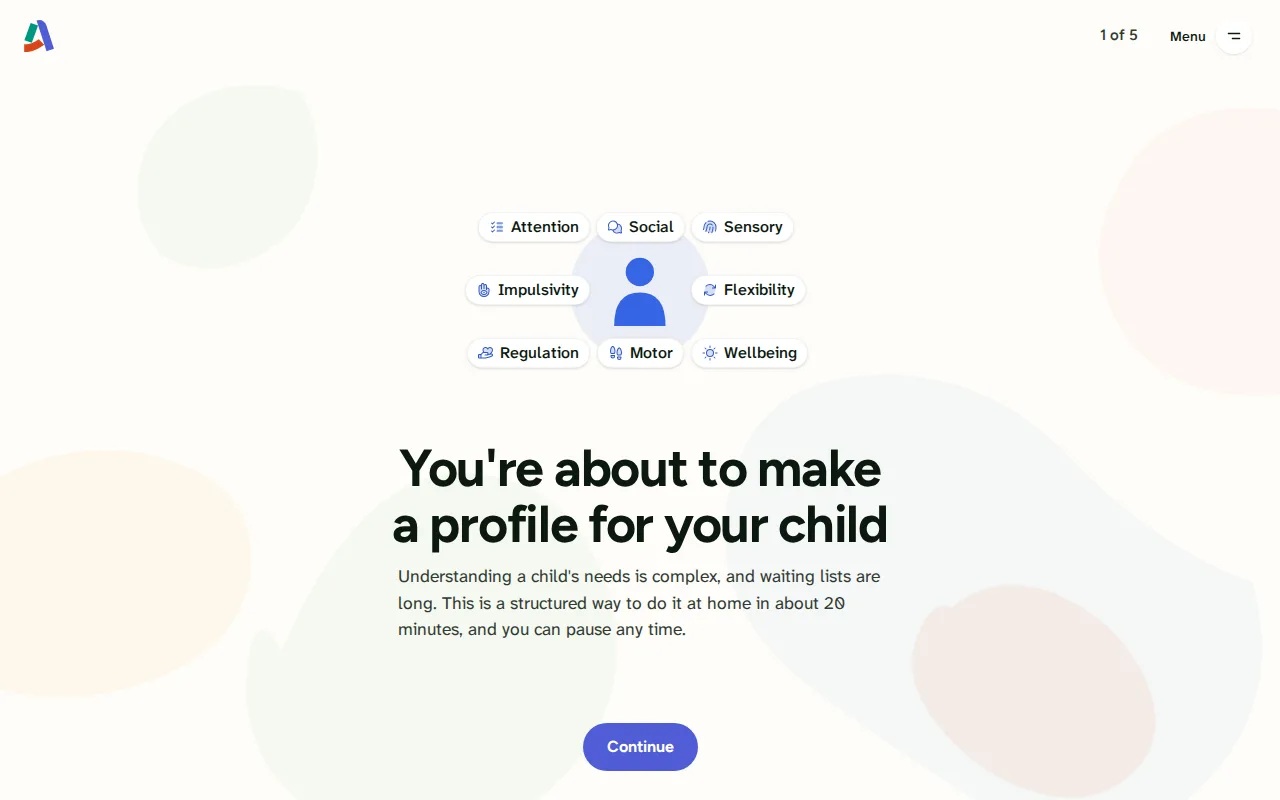
How this works, and “What should we call you?”. How this works, in five short screens. Also where the product asks the parent their own name: type Jess. -
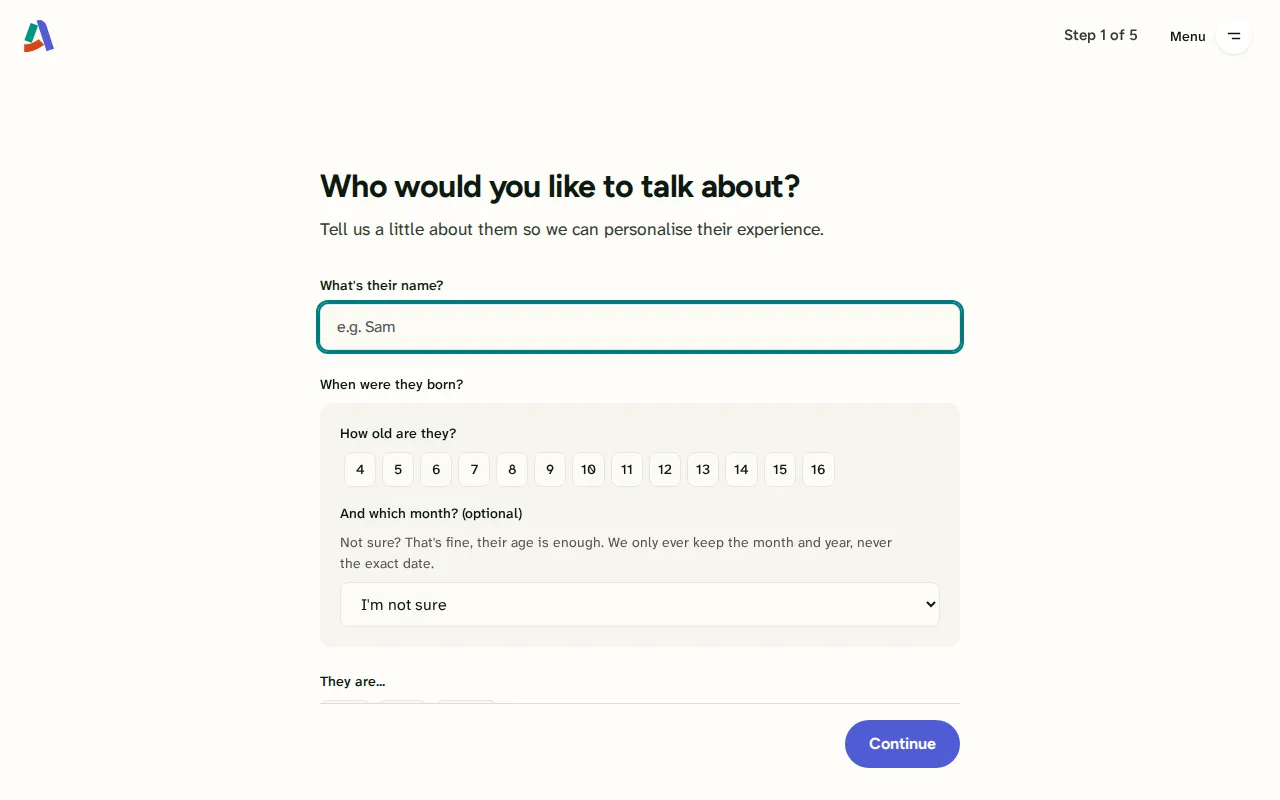
Add your child. No school made a child for Jess, so she adds her own. Any first name will do. -
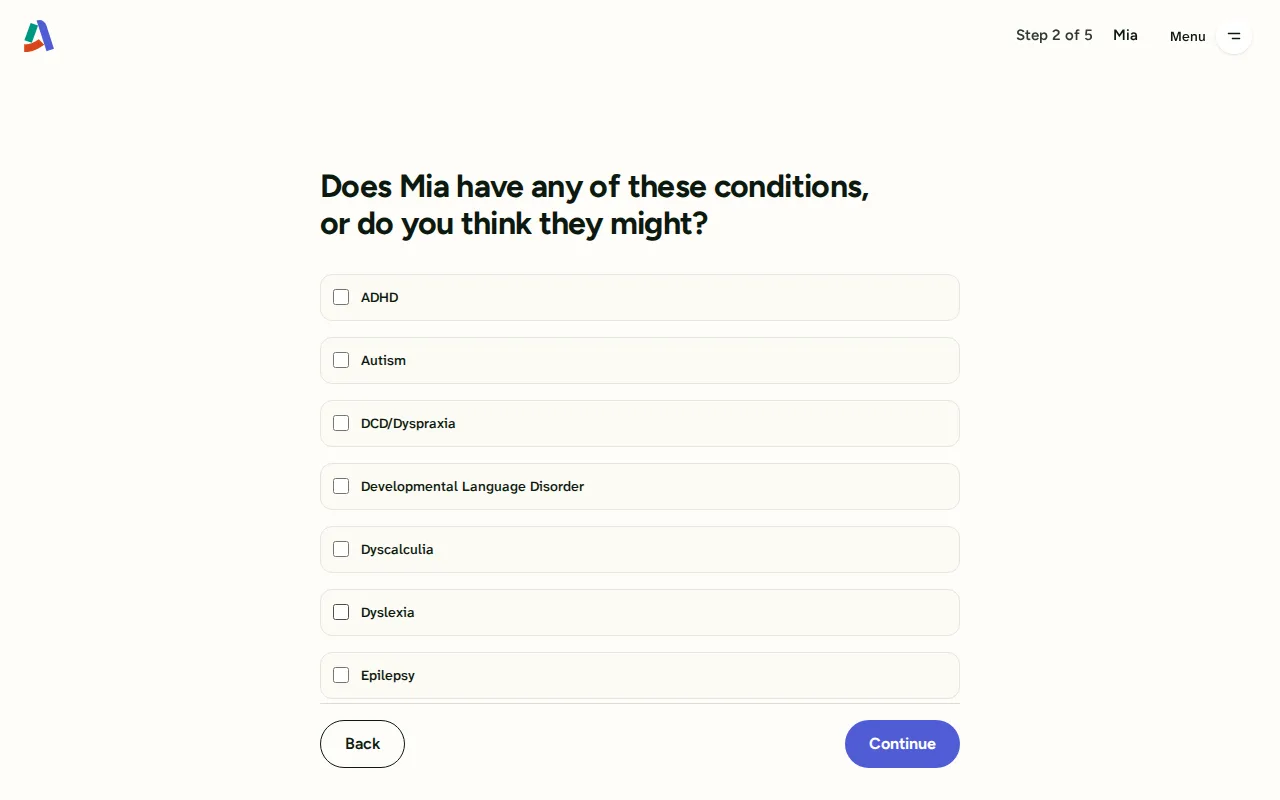
Any diagnoses or assessments?. Any diagnoses or assessments so far. Every route into the questions passes through here. -
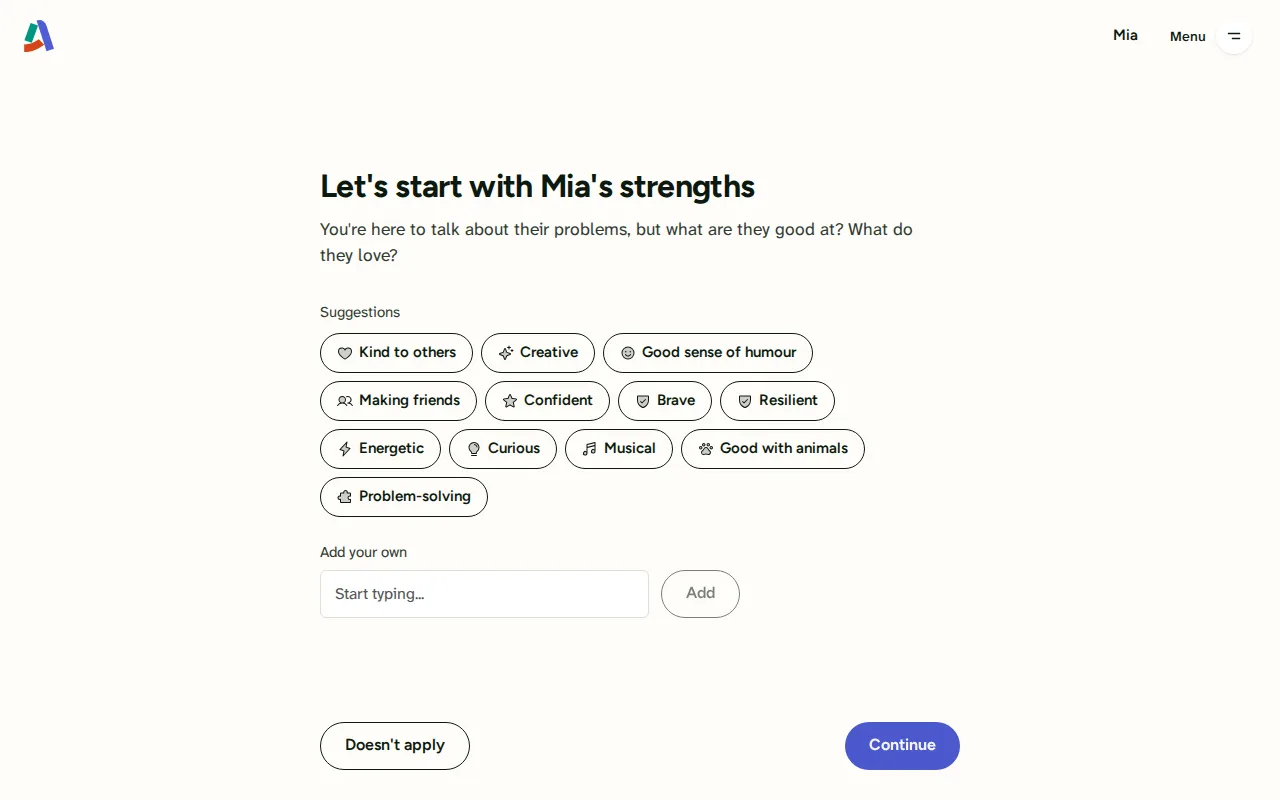
The first profiler card. Where the questions begin: what the child is good at, then what is worrying the parent, in their own words. From here on it is the same as for an invited parent.


Screen 1 of 8: The sign-in page
Further along
Later in the story: a parent part way through the questions, a parent reading a finished report, and what the school sees once a parent has answered.
1. Parent answers the questions
From the map of dimensions to the last question, one dimension at a time. Seen as Sarah, parent.
-
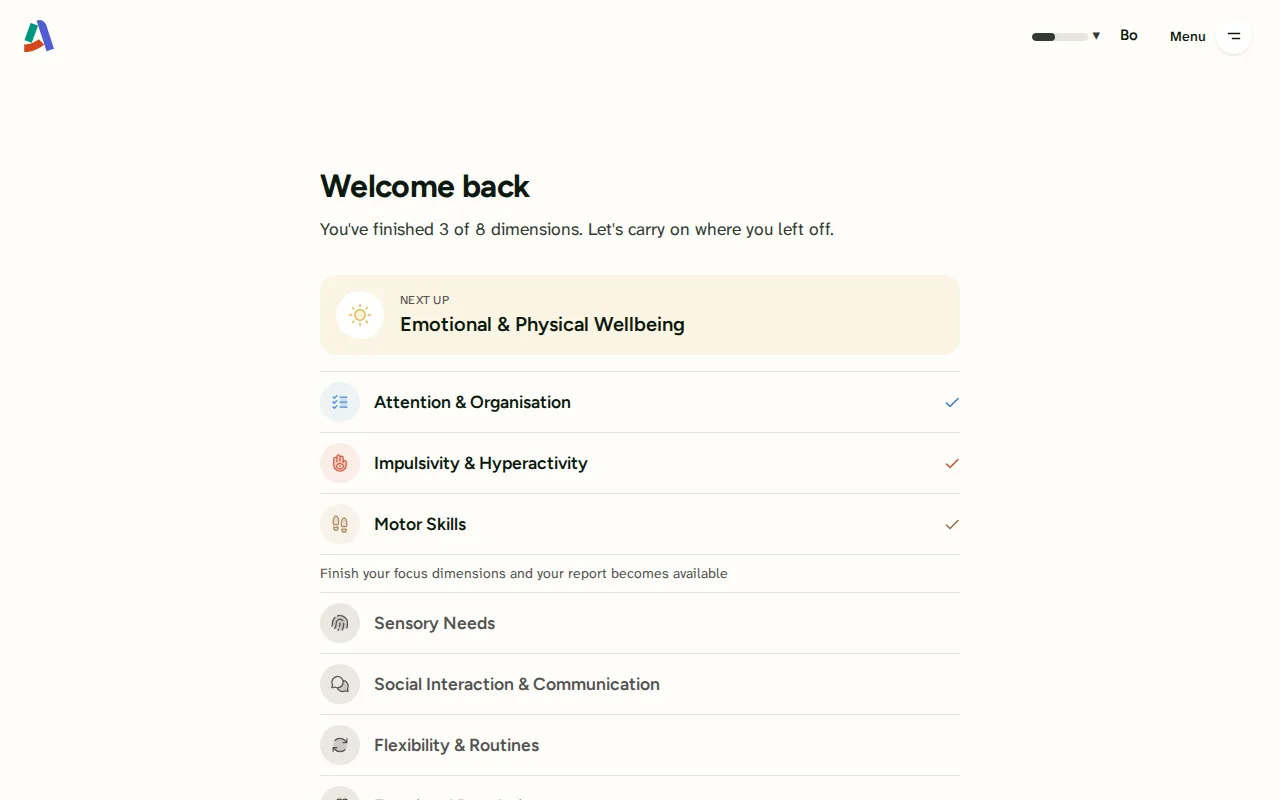
Welcome back: the map of dimensions. Sarah coming back to Bo's questions part way through. The map shows each dimension and how far she got. Continue picks up where she stopped. -
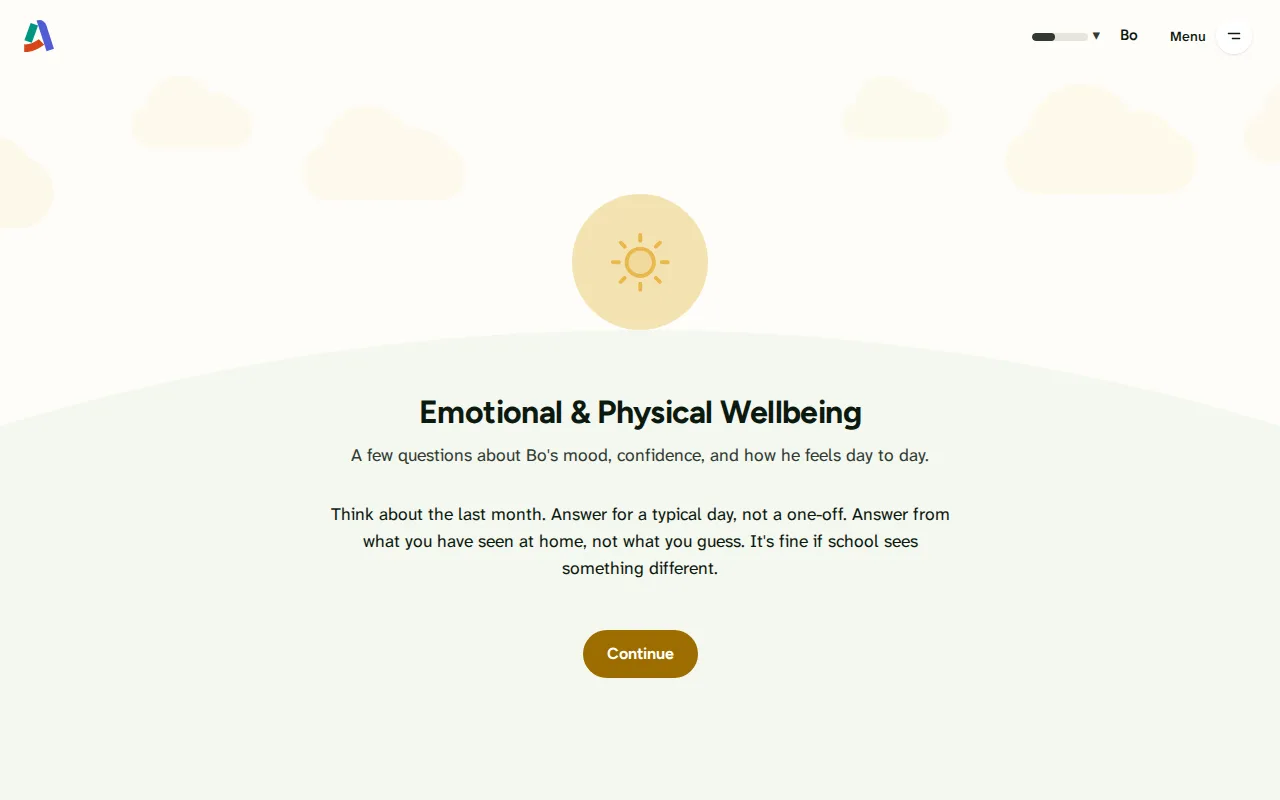
Emotional & Physical Wellbeing. Emotional & Physical Wellbeing: the questions for one dimension. Answer a few, or press Next to move to the next dimension. -
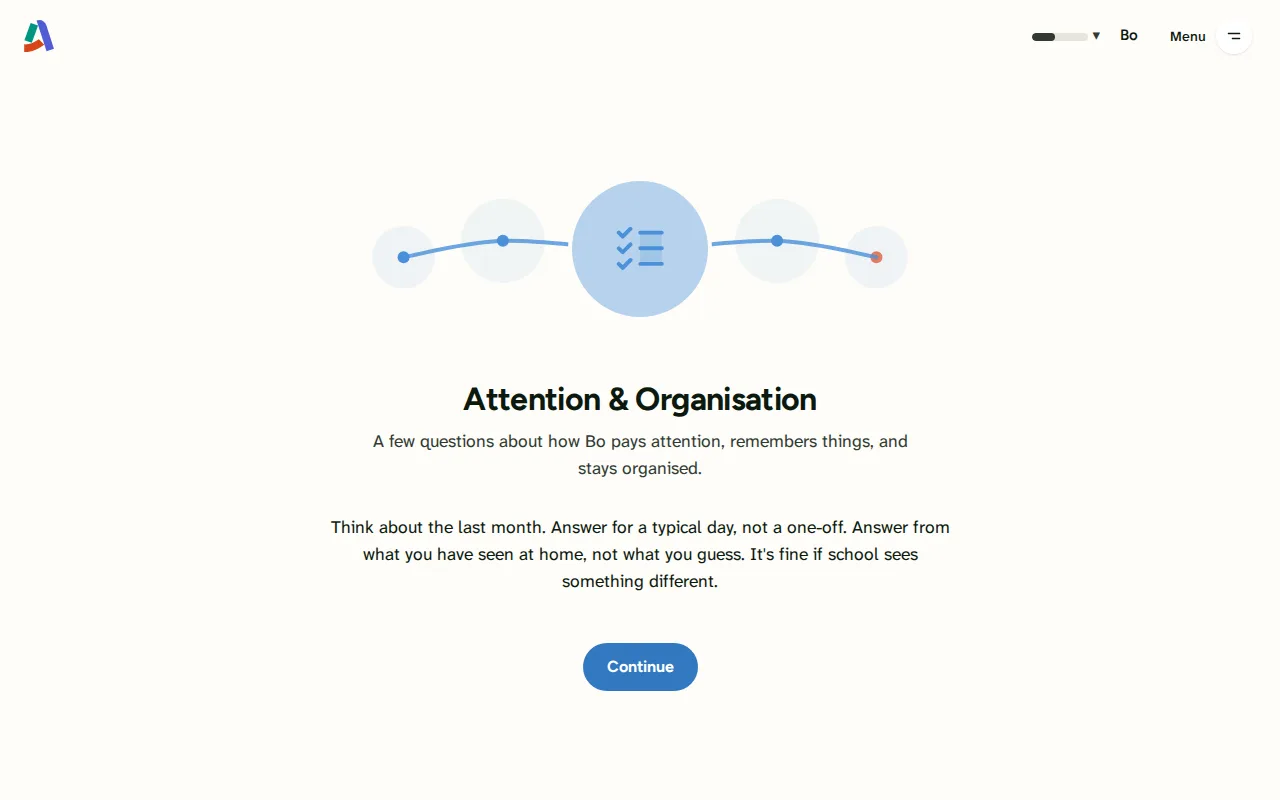
Attention & Organisation. Attention & Organisation: the questions for one dimension. Answer a few, or press Next to move to the next dimension. -
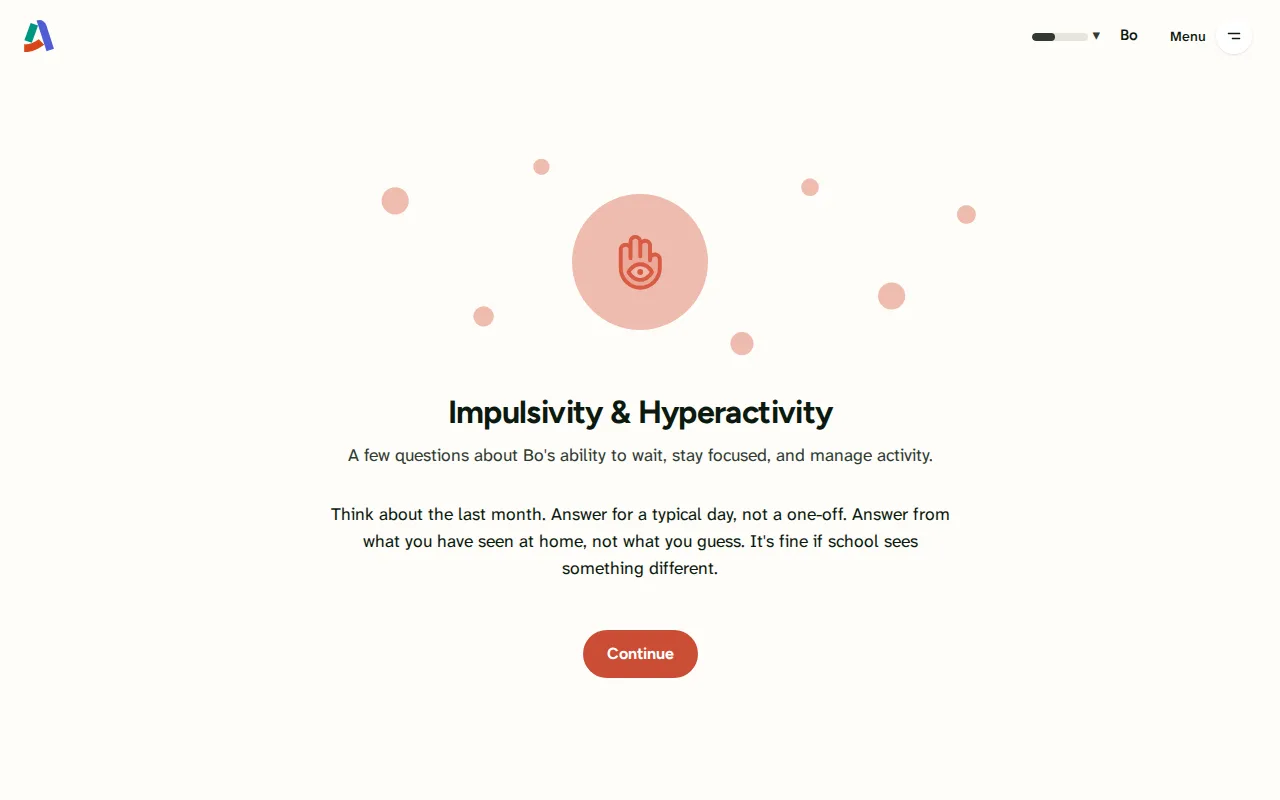
Impulsivity & Hyperactivity. Impulsivity & Hyperactivity: the questions for one dimension. Answer a few, or press Next to move to the next dimension. -
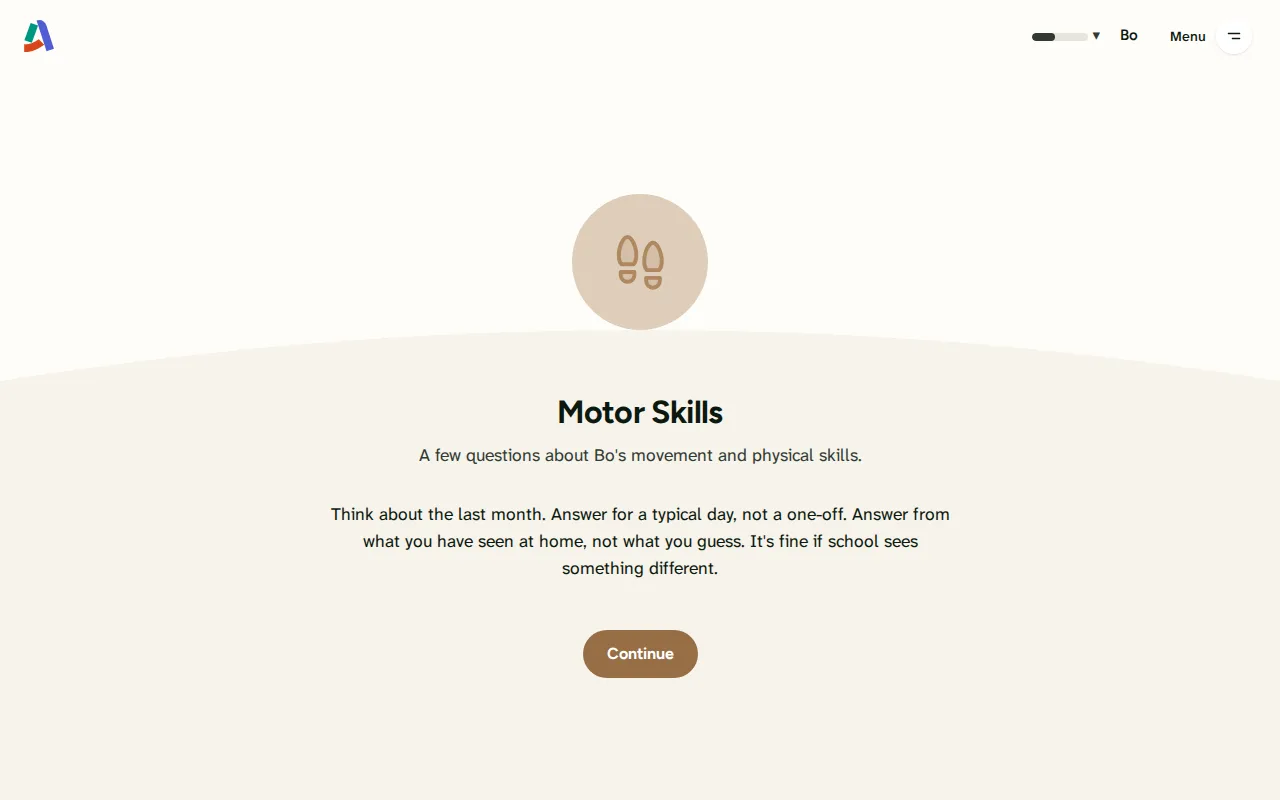
Motor Skills. Motor Skills: the questions for one dimension. Answer a few, or press Next to move to the next dimension. -
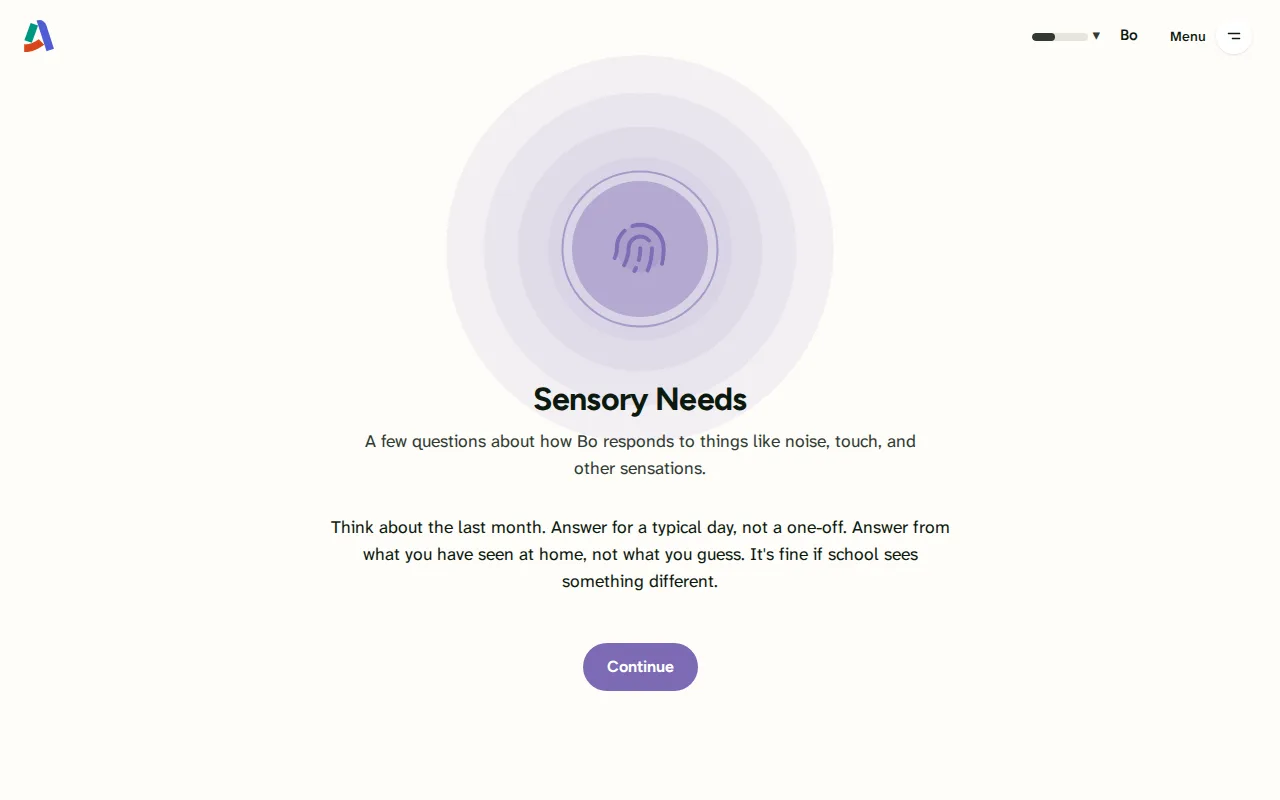
Sensory Needs. Sensory Needs: the questions for one dimension. Answer a few, or press Next to move to the next dimension. -
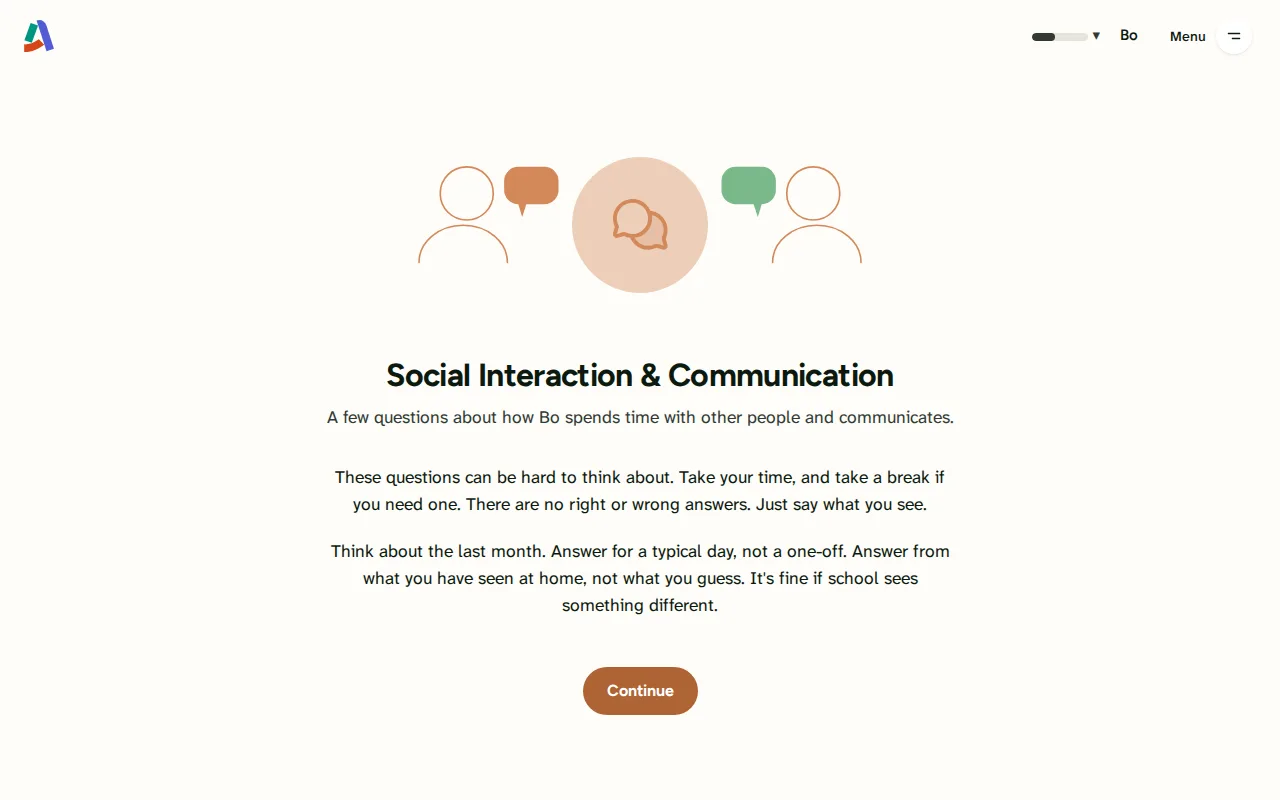
Social Interaction & Communication. Social Interaction & Communication: the questions for one dimension. Answer a few, or press Next to move to the next dimension. -
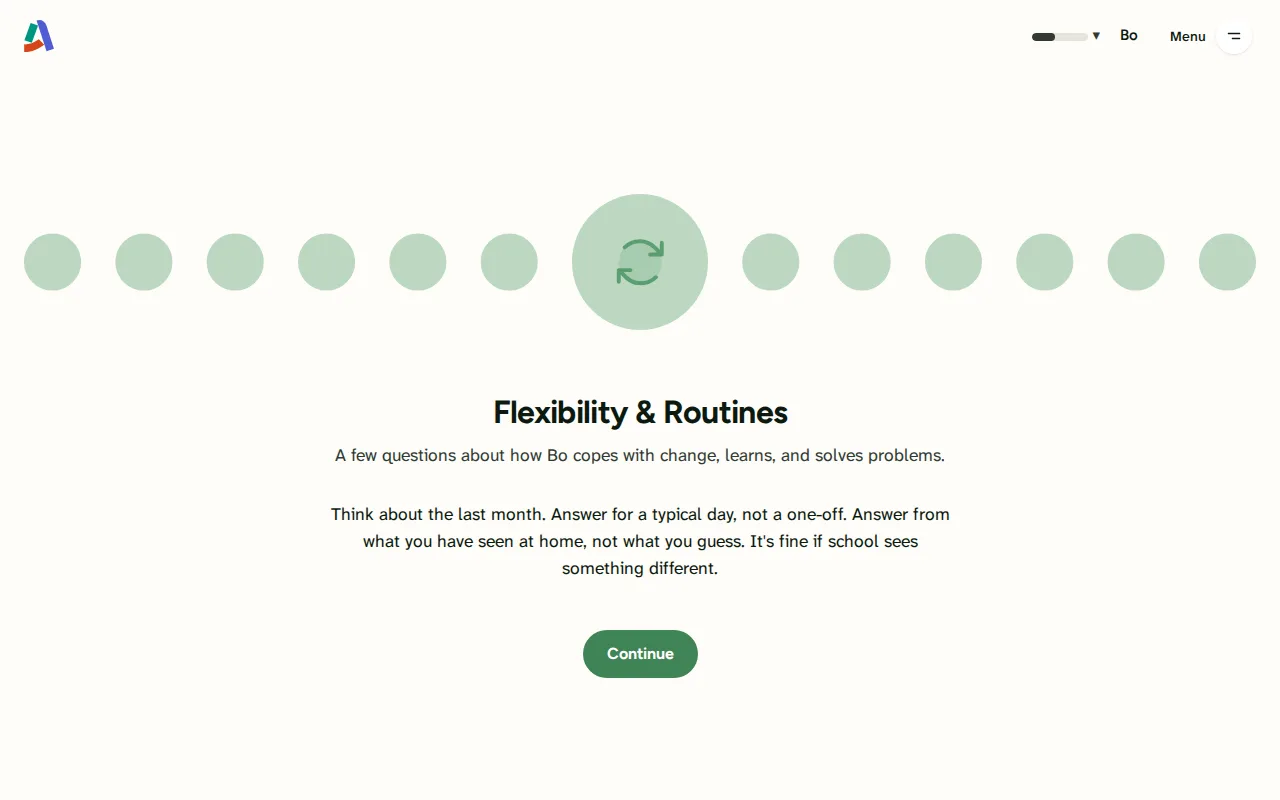
Flexibility & Routines. Flexibility & Routines: the questions for one dimension. Answer a few, or press Next to move to the next dimension. -
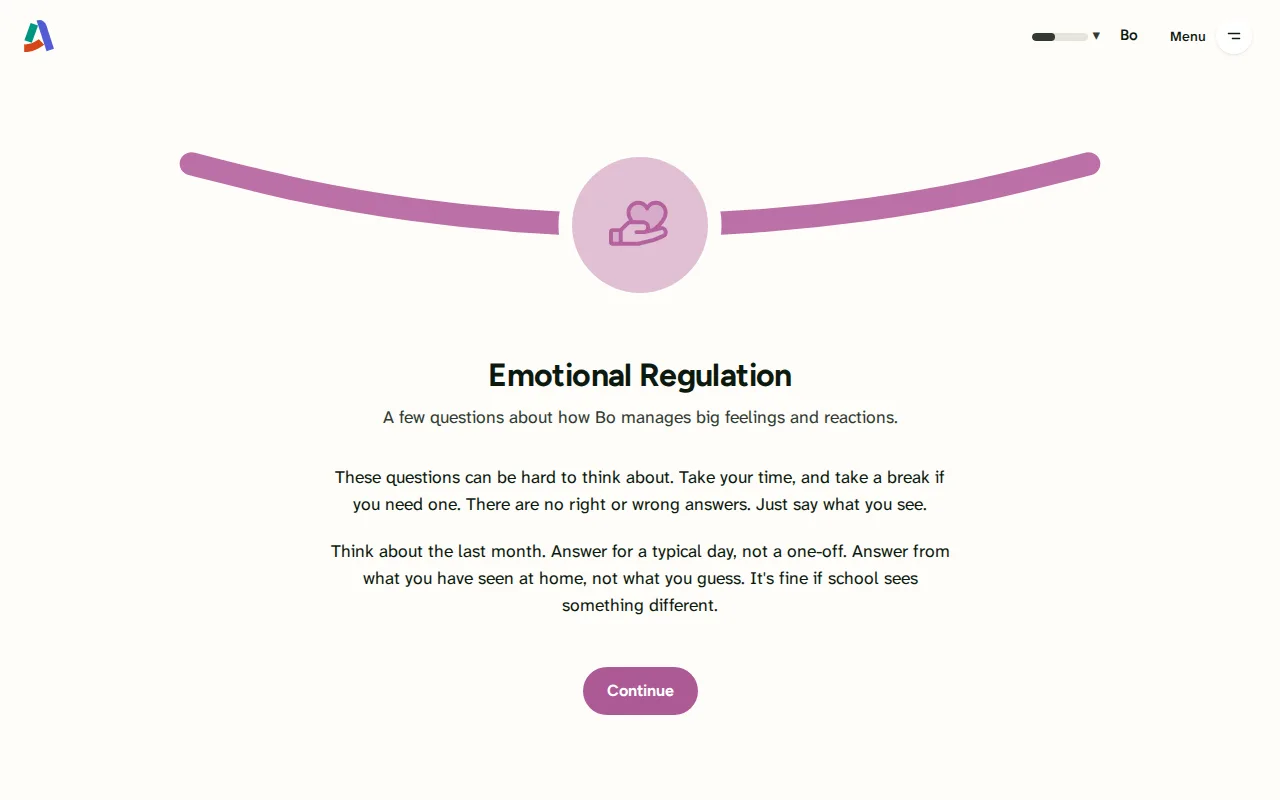
Emotional Regulation. Emotional Regulation: the questions for one dimension. Answer a few, or press Next to move to the next dimension. -
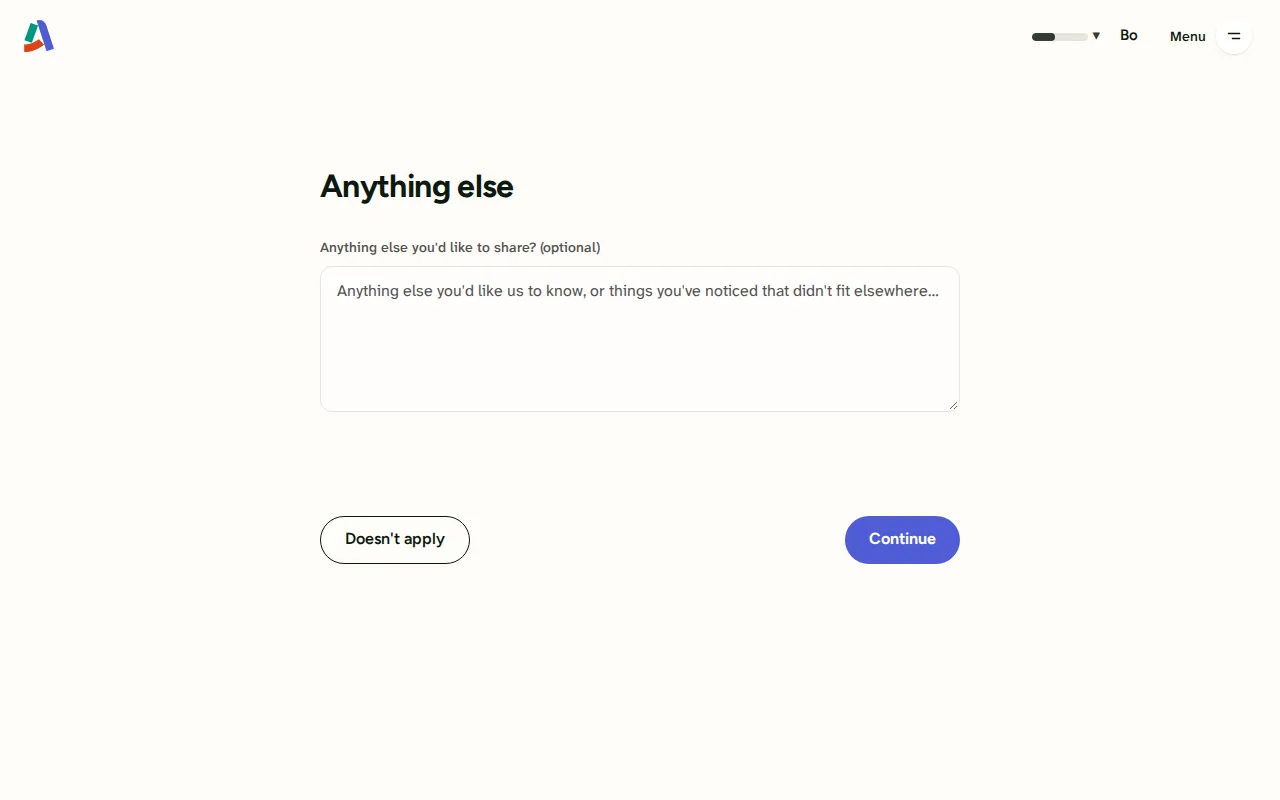
Anything else to add. Anything else Sarah wants to say about Bo, in her own words. The last card before the profile is finished.


Screen 1 of 10: Welcome back: the map of dimensions
2. Parent reads the report and chats
From the finished report to a conversation about the child. Seen as Sarah, parent.
-
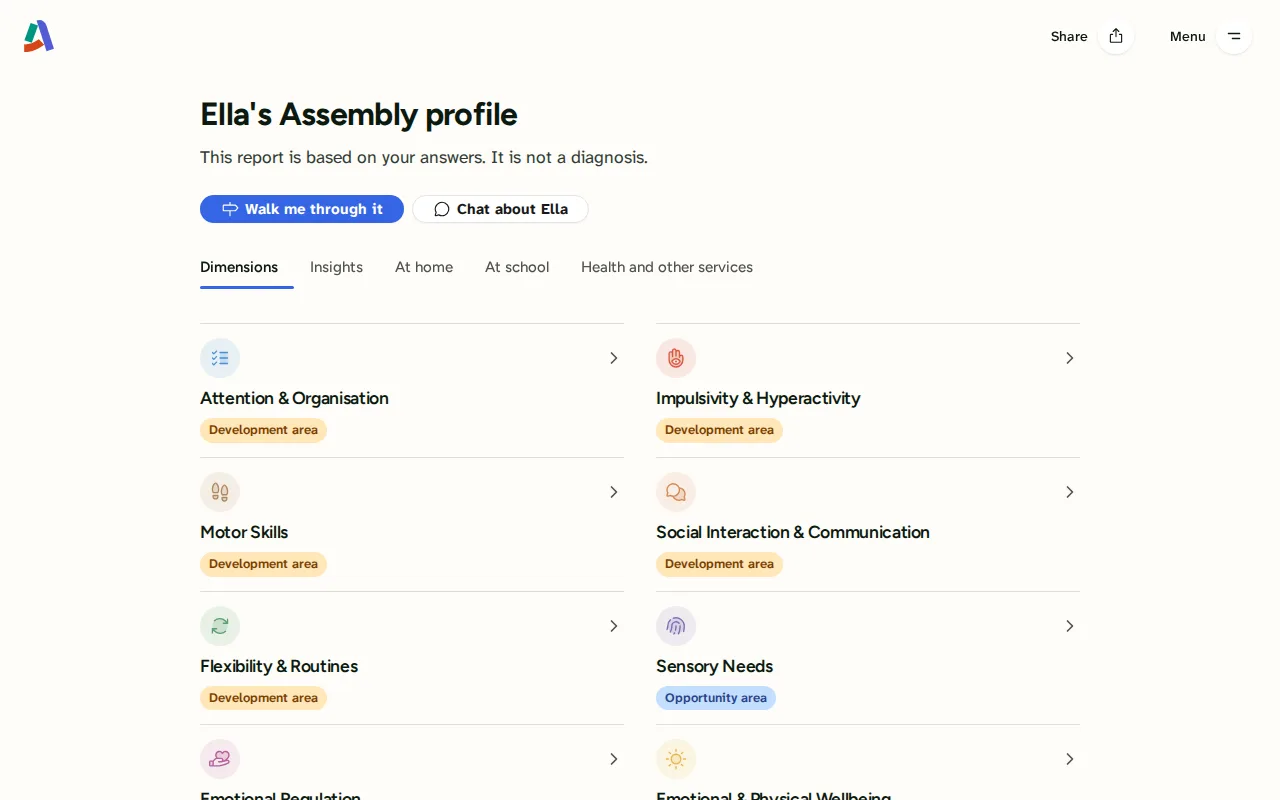
The report. Ella's report: what Sarah's answers add up to, dimension by dimension. Scroll through it as she would. -
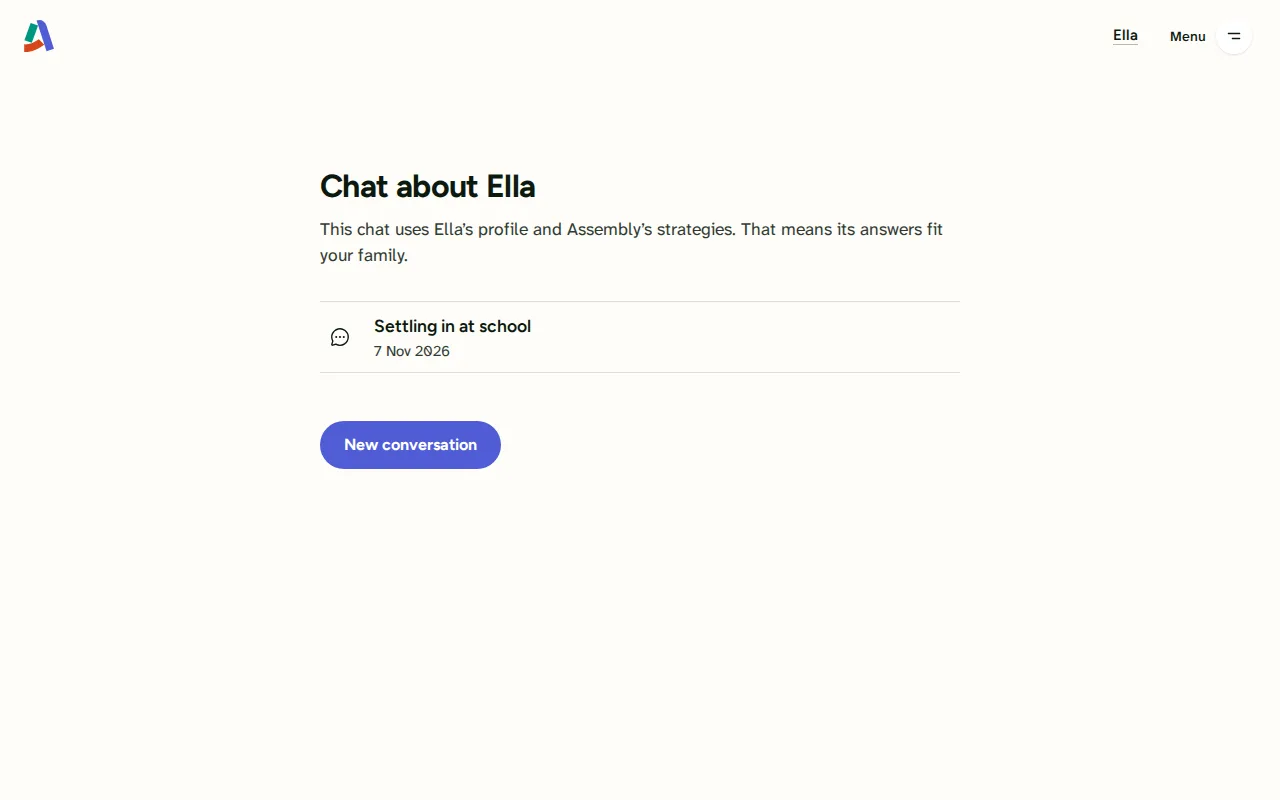
Chat about the child. Chat about Ella. Open the conversation already there, or ask something new. -
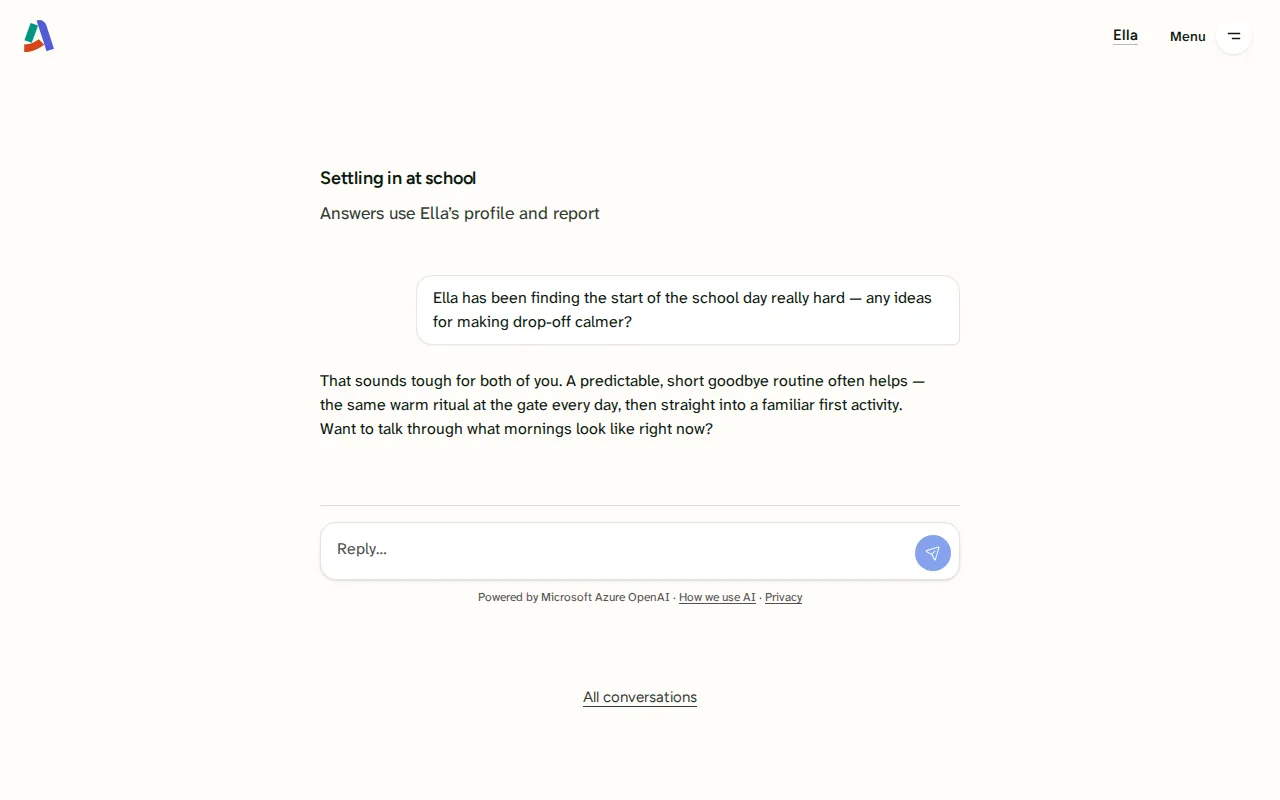
A conversation. A conversation about Ella. In the walkthrough the replies come from a stand-in, not the real model, so they will not fit the question.


Screen 1 of 3: The report
3. SENCO reads the parent's views
From the school's list of children to the meeting sheet for a child whose parent has finished. Seen as Nadia, SENCO.
-
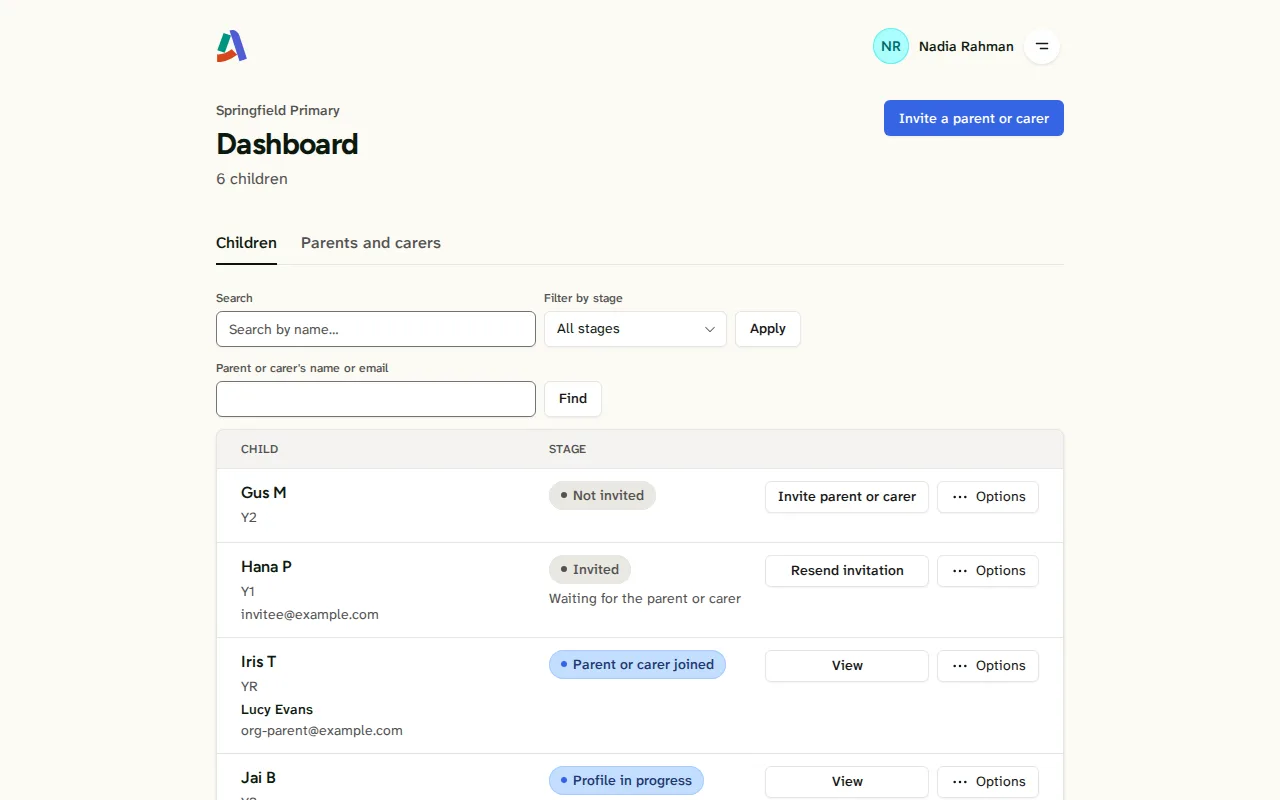
The school's list of children. Nadia's list of children. Kit's parent has answered every question. Open Kit from her row. -
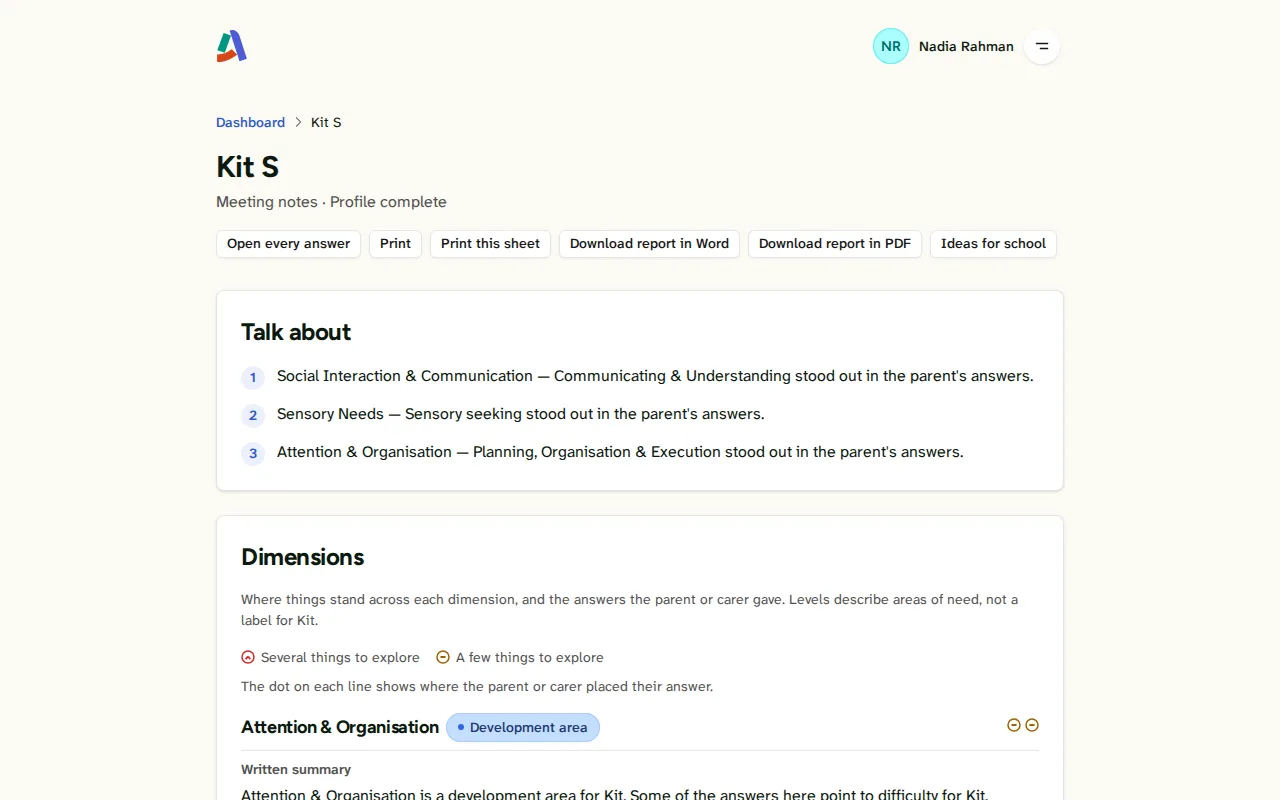
The meeting sheet. The meeting sheet: the parent's views, ready for a meeting at school. Nadia can take a Word copy away to edit.


Screen 1 of 2: The school's list of children
Looking for something else?
- How it works
The same journey told in seven steps, if you would rather read than click.
- For professionals
What Assembly does for schools, the NHS and the people who support families.